 Skip to Content


Votre panier est vide





What is Art Mode with The Frame Pro?
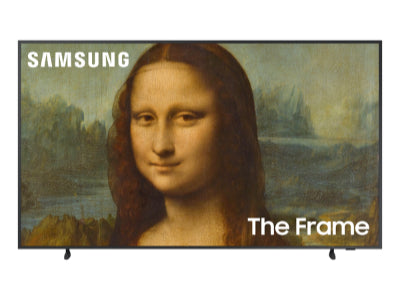
At the core of The Frame Pro experience is Art Mode, which transforms your TV into a curated masterpiece whenever it is not in use. Through the Samsung Art Store, you can browse more than 3500 works from world-renowned institutions, including The Museum of Modern Art, The Art Institute of Chicago, and Art Basel. Every piece appears with Pantone Validated ArtfulColor on a matte, glare-free surface that looks like real canvas, even in bright rooms. If you want something more personal, you can upload your own photos, adjust mat styles and colors, and explore a wide range of presentation options that make your home feel truly your own.
How Do I Add Artwork From the Samsung Art Store to The Frame Pro?
You can add new artwork to The Frame Pro from the Samsung Art Store in just a few simple steps:
Step 1
Select Art Mode on The Frame Pro.
Step 2
Open the Samsung Art Store.
Step 3
Browse the collections or search for a specific artist, museum, or category.
Step 4
Select the artwork you want, then choose Set to display it on The Frame Pro.
This lets you rotate curated pieces from MoMA, The Art Institute of Chicago, Art Basel, and many others, giving your home a fresh, museum-quality experience anytime.

How To Add Custom Art Pieces to The Frame Pro
Step 1
Make sure the photo or artwork you want to display is already saved on your phone.
Step 2
Your image must be sized to 3840 x 2160 pixels. To resize it instantly, you can use the Deco TV Frames Art Resizing Tool on our site. You can also use the Image Size app. Open your photo in the app, set the dimensions to 3840 x 2160, then download and save the updated file to your phone.
Step 3
Download the Samsung SmartThings app. This serves as a convenient controller for your Frame Pro. Open SmartThings, select your Frame Pro, then choose Art Mode.
Step 4
Select Add Your Photos, then choose the image you want to upload from your phone’s library.
Step 5
Select Create Mat. You should see “No Mat” appear. If it doesn’t, your image is not sized correctly. The Frame Pro only accepts custom uploads at exactly 3840 x 2160 pixels.
Step 6
Select Set. Your custom art will now appear on The Frame Pro’s matte display, blending seamlessly with your home just like a framed work of art.
Alternative Method to the SmartThings App
If you prefer not to use the SmartThings app with The Frame Pro, you can upload your custom art another way. After you size your images to 3840 x 2160 pixels, save them to a USB thumb drive. Plug the thumb drive into the USB port on the One Connect Box, and The Frame Pro will recognize the files so you can add them directly in Art Mode. This approach works well if your phone isn’t connecting smoothly to SmartThings or if you want a simple, plug-in way to update your custom gallery.

Ready to Add a Frame?
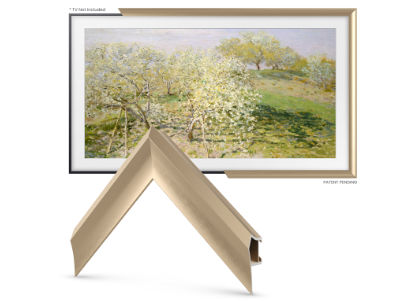
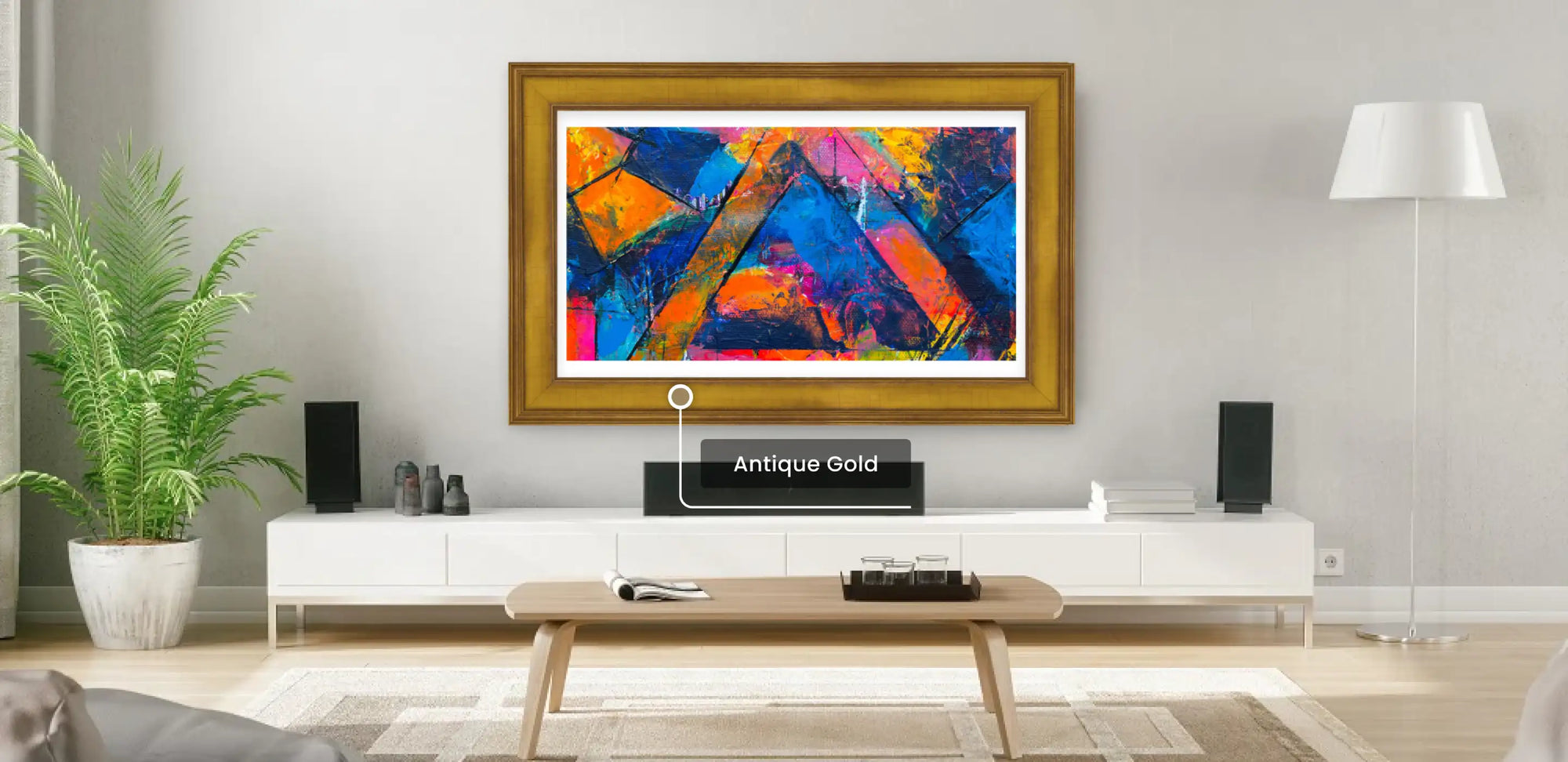
Our Deco Collection features a patented magnetic quick assembly design that sets up in under two minutes. Each frame is precisely engineered to fit every model year of the Samsung Frame TV, including The Frame Pro, so you get a perfect match every time. With more than 40 handcrafted styles and 25 additional designs in the exclusive 22K Deco Gold collection, you can give The Frame Pro a seamless, gallery-level finish that elevates your entire space.

Shop Our Complete TV Frame Collection

How Do I Add Artwork From the Deco TV Frames Samsung Art Store to The Frame Pro?
Along with your own custom uploads, The Frame Pro gives you access to more than 500 curated pieces of affordable digital artwork through the Deco TV Frames Samsung Frame Art Store.
Step 1
Select Art Mode on The Frame Pro.
Step 2
Select Add Your Photos.
Step 3
Browse and choose the photos or digital artwork you want to add to your growing collection.
Step 4
Open your collection and select the piece you want displayed on The Frame Pro.

Can I Edit My Digital Art Images?
Yes. The Frame Pro gives you the flexibility to make the art on your wall feel more at home in your space. Whether you're enjoying artwork from the Samsung Art Store or displaying your own photos, you can create a presentation that feels personal, considered, and true to the room around it.
Because the right display isn't simply about what appears on the screen. It's about how art, technology, and the room come together as one. The Frame Pro provides the canvas; Deco TV Frames adds the finishing touch that helps the entire presentation feel intentional.
Get Curated Art From the Deco TV Frames Art Store

